Get Copilot to Write Your Teams Meeting Notes
Microsoft users can review discussions easily by asking this assistant to recap long team calls.

Updated
To get a Copilot meeting summary in Microsoft Teams, select Copilot in the meeting controls and ask “Summarize the meeting so far.” After the meeting, open the meeting chat, select Recap (or Open Copilot in the upper-right corner of the chat) and ask for a summary, action items or minutes. You need a Microsoft Copilot add-on licence, and to ask about the meeting after it ends, transcription must have been on.
No licence? You can still download the meeting transcript and ask Copilot Chat to summarize the file. Both routes, plus copy-ready prompts for meeting minutes, are below.
Everything here was checked against Microsoft’s support and admin documentation in October 2026. Menu names can differ slightly depending on your Teams version and your organization’s settings.
What You Need Before Copilot Can Summarize a Meeting
| What you want | Licence needed | Transcription needed? |
|---|---|---|
| Ask Copilot questions during a meeting | Microsoft Copilot add-on licence | Not if the organizer chose Only during the meeting; yes if they chose During and after the meeting |
| Ask Copilot about a meeting after it ends | Microsoft Copilot add-on licence | Yes, a transcript must exist |
| Intelligent recap (AI notes, follow-up tasks, chapters, speakers) | Teams Premium or Microsoft Copilot licence | Yes; chapters and speaker markers also need a recording |
| Facilitator (live AI notes the whole meeting can see) | Microsoft Copilot licence for the person who turns it on | Only if you want to prompt it after the meeting |
| Summarize a downloaded transcript file in Copilot Chat | No add-on licence (eligible Microsoft 365 work or school account) | You need the transcript file |
A few rules catch people out:
- The organizer decides. When scheduling, the organizer sets Options > Copilot and other AI > Allow Copilot and Facilitator to During and after the meeting, Only during the meeting or Off. Organizers control this even if they don’t have a Copilot licence. Choosing Off also turns off recording and transcription.
- Your admin’s policy can lock it. By default, Microsoft’s admin policy requires a saved transcript for Copilot, and organizers can’t change that unless the admin allows it.
- Where it doesn’t work: meetings hosted outside your organization, end-to-end encrypted meetings, and the GCC High government cloud.
- Your chat with Copilot is private. Other people in the meeting can’t see your prompts or Copilot’s answers.
How to Summarize a Live Teams Meeting
Use this when you join late, lose the thread, or want notes building while the meeting runs.
Step 1: Check transcription. If the meeting is set to During and after the meeting, Copilot needs a transcript. Selecting Copilot will prompt you to start transcription, or you can start it yourself: More actions (…) > Transcribe, confirm the spoken language, then select Confirm. Recording a meeting starts transcription automatically.
Step 2: Open Copilot. Select Copilot in the meeting controls. The Copilot pane opens on the right. On the Teams desktop app you can pop it out into its own window with Open private Copilot in new window.
Step 3: Ask for what you need. Select View prompts for suggestions, or type your own:
- Summarize what I’ve missed.
- What are the key points of the discussion so far?
- List any decisions made so far, and who made them.
- Where do we disagree on this topic?
- Create a table with the ideas discussed and their pros and cons.
- List the ideas, including people’s feedback, from transcript and chat.
If you join more than 5 minutes after the start and Copilot is already active, Teams offers to catch you up. Select Open Copilot and the summary appears in the pane.
Step 4: Move long answers into a document. If Copilot’s response is over 1,300 characters, select Open in Word. If it’s a table, select Open in Excel. Export is blocked when the meeting’s sensitivity label or the “turn off copying and forwarding” option prevents it.
How to Summarize a Meeting Without Recording It
For confidential meetings where nobody wants a saved transcript, the organizer can let Copilot work from live speech-to-text only:
- In Teams, select Calendar and open a meeting you organized.
- Select Options, scroll to Copilot and other AI and choose Only during the meeting. (If you don’t see this option, ask your IT admin.)
- Select Apply.
- During the meeting, select Copilot in the meeting controls, then Turn on in the notification.
The catch: without a transcript, Copilot won’t be available in the Recap tab afterwards, and speech that wasn’t transcribed is gone when the meeting ends. Copy anything you want to keep before you leave. Depending on your organization’s Microsoft Purview retention policies, your prompts and Copilot’s responses may still be retained for compliance.
How to Get the Recap After the Meeting
If you missed the meeting or want the full picture later, there are two places to look. Both depend on the meeting having been transcribed.
Option 1: The AI summary in Recap (intelligent recap)
- Select Chat in Teams and open the past meeting’s chat.
- Select Recap at the top (or View recap on the meeting thumbnail).
- Open AI summary to see AI-generated notes and follow-up tasks.
AI summaries need a meeting of at least five minutes, transcribed in a supported language, and a Teams Premium or Microsoft Copilot licence. If the meeting was also recorded, Recap adds speaker markers, chapters and topics so you can jump to the part of the recording you need. Organizers, co-organizers and presenters can send the summary and follow-up tasks as an Outlook email with Share > Share to email, including to attendees outside the organization.
Option 2: Ask Copilot about the meeting
Select Open Copilot in the upper-right corner of the meeting chat, or open Copilot from the Recap tab (you’ll see the same conversation history). Copilot answers from both the transcript and the chat, including chat messages from up to 24 hours before the meeting, and cites its sources. Try:
- What ideas were discussed?
- What were the sales figures discussed?
- Who is responsible for the Q4 report?
- Draft a follow-up email to attendees with the decisions and next steps.
One warning for recurring meetings: earlier Copilot conversation history is no longer available once a later meeting in the series is transcribed. If you need it, copy it out first.
Intelligent Recap or Copilot: Which One Should You Open?
- Intelligent recap is the ready-made summary: notes, tasks and markers generated for everyone after the meeting. Use it to catch up in a couple of minutes.
- Copilot is a conversation. Use it when you need something specific: minutes in your company’s format, a decision log, one person’s position, or an email draft.
How to Get Meeting Minutes from Copilot
Copilot doesn’t have a “minutes” button, so you get minutes by asking for them in a fixed structure. Open Copilot from the meeting chat or Recap tab (or in the meeting before it ends) and paste a prompt like this:
Write formal meeting minutes from this meeting’s transcript and chat. Include: meeting title and date, attendees, agenda items discussed, a short summary of each item, decisions made, action items as a table with owner and due date, and open questions. Use neutral, factual language and don’t include anything that wasn’t said.
Then refine it:
- Shorten the minutes to one page for people who weren’t there.
- Turn the action items into a table I can paste into Planner or Excel.
- Which action items don’t have an owner or a due date?
- Rewrite the summary for the leadership team, focusing on budget and risks.
Because the response will be long, use Open in Word to edit and share it.
Let Facilitator Take the Notes for You
If you want notes written automatically while the meeting runs, rather than asking for them afterwards, turn on Facilitator. It writes real-time AI notes that every participant (except external participants) can see and edit, summarizes key decisions and open questions, and can track an agenda and timer.
- When scheduling: in a new meeting, select Options > Copilot and other AI, make sure Allow Copilot and Facilitator is set to Only during the meeting or During and after the meeting, and turn the Facilitator toggle on.
- During a meeting: select More actions (…) > Turn on Facilitator. Only organizers or presenters using Teams for web or desktop can do this.
The person turning Facilitator on needs a Microsoft Copilot licence. Facilitator works in scheduled meetings only (not channel meetings, instant meetings or calls). After the meeting, the notes are in Recap > Notes, stored on a Microsoft Loop page, and you can ask “@Facilitator, create a Word document of the decisions from this meeting” in the meeting chat. For in-person meetings, the Teams mobile app has a Take notes with Facilitator option under Calendar > Meeting.
How to Ask Copilot to Summarize a Meeting Transcript
This route works for any meeting you have a transcript for, and it’s the main option if you don’t have a Copilot licence.
Step 1: Download the transcript. In Teams, select Chat, open the past meeting chat, select Recap > Transcript, then use the dropdown next to Download to save it as a .docx or .vtt file. By default, only the organizer and co-organizers can download it; your admin may allow others.
Step 2: Give it to Copilot. Pick whichever you have:
- Copilot Chat (no add-on licence needed): go to copilot.cloud.microsoft or m365.cloud.microsoft/chat, sign in with your work or school account, upload the .docx file (or paste the transcript text) and send your prompt. Copilot Chat can analyze uploaded files without a Microsoft Copilot licence, but it doesn’t get the broad access to your meetings, emails and chats that the paid licence adds, so give it the file.
- Copilot in Word: open the .docx transcript in Word, select Copilot on the ribbon and ask for a summary. If you have a Microsoft Copilot (work) licence and the file is saved in OneDrive or SharePoint, Word may show an automatic summary at the top. If you don’t see Copilot in Word at all, your subscription or organization’s settings may not include it.
Step 3: Use a specific prompt. “Summarize this” gives you a generic paragraph. These work better:
- Summarize this Teams meeting transcript into key points, decisions and action items with owners.
- Write meeting minutes from this transcript using these headings: Attendees, Discussion, Decisions, Action items, Open questions.
- List every commitment someone made in this transcript, with the speaker’s name and the timestamp.
- Summarize what [name] said about [topic] and whether anyone disagreed.
- Draft a follow-up email to the attendees based on the decisions in this transcript.
The same approach works for meeting notes in a text document or OneNote. Ask Copilot to summarize the document into five key bullet points, extract the action items, or draft a follow-up email, and you get a structured summary instead of re-reading everything.
Turn the Summary into Other Formats with TubeOnAI
Copilot is the right tool inside Teams. Where TubeOnAI can help is what comes next, or with meetings that didn’t happen in Teams. It’s an AI tool that summarizes and repurposes content, and it works with uploaded media and documents as well as PDFs, Google Docs and Google Drive files.
That makes it useful when:
- the meeting was recorded somewhere else (for example, a recording saved to Google Drive or an audio file), and you want a summary of the recording itself (see our audio summarizer);
- you want to turn the transcript or Copilot’s notes into other formats, such as a newsletter, a LinkedIn post or an internal announcement. The repurposing workflow is the same whatever the source.
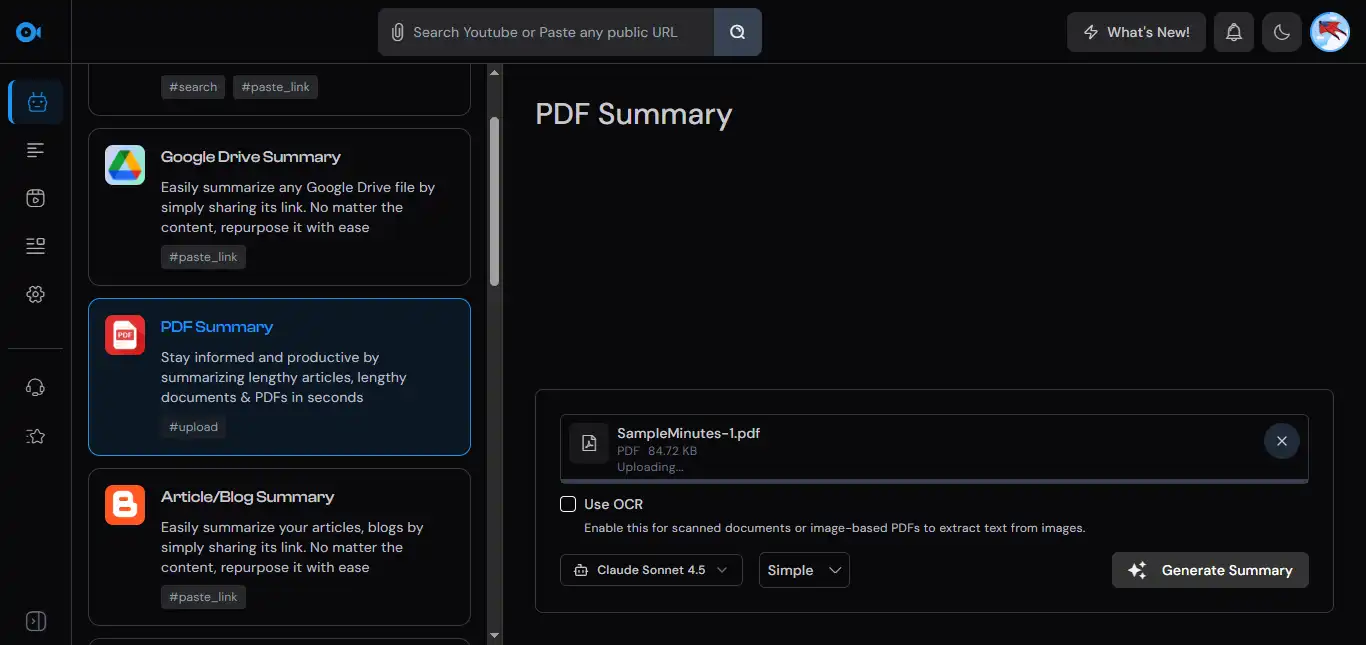
Step 1: Add your content. Upload the meeting notes or the entire meeting transcript as a Google Doc or PDF.
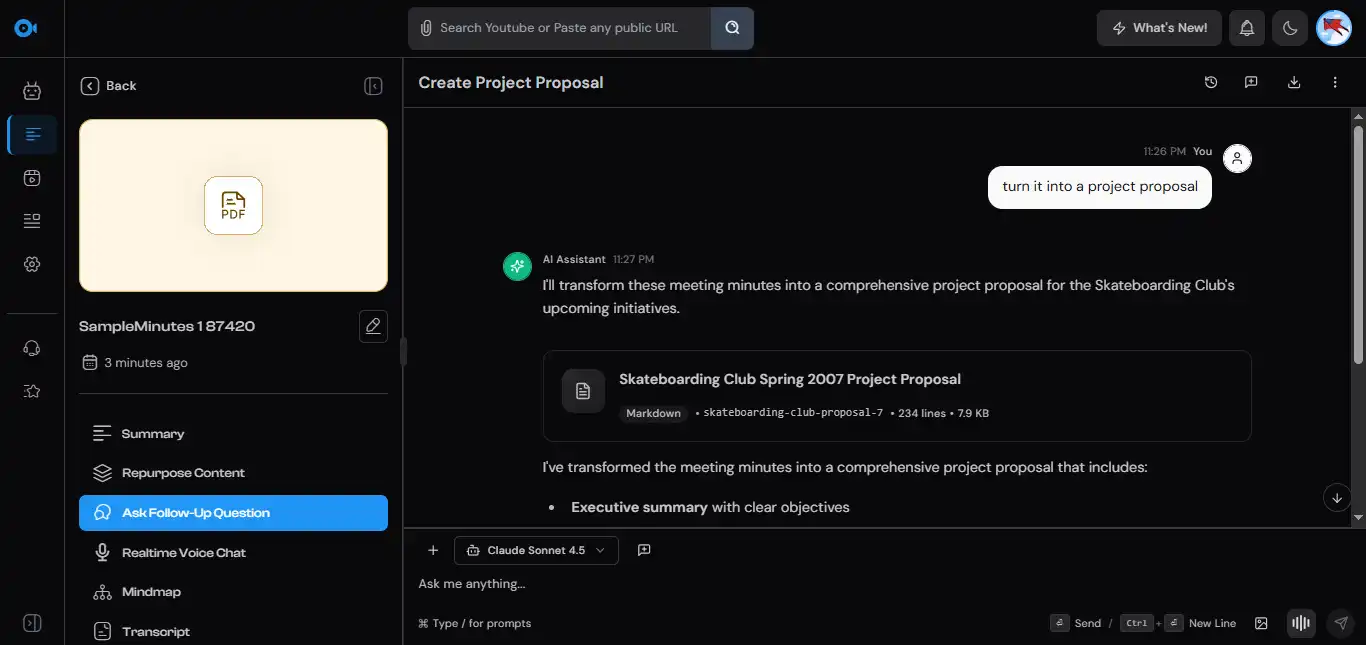
Step 2: Tell it what to create. Choose one of TubeOnAI’s 150+ repurposing prompts or write a custom prompt, for example “turn these notes into an internal notice for the team” or “draft a project proposal from the decisions in this meeting”. You can also ask follow-up questions about the document, or turn the notes into mind maps from Google Docs.
Don’t upload confidential meeting content to any outside tool unless your organization allows it.
FAQs
Can Copilot summarize a Teams meeting without recording it?
Yes. If the organizer sets Copilot to Only during the meeting, Copilot works from live speech-to-text without a recording or transcript. You can ask for summaries during the meeting, but you can’t come back to Copilot in the Recap tab afterwards unless someone turned on transcription. Copy what you need before the meeting ends.
Do I need a special licence to use Copilot in Teams meetings?
Yes. Each person who wants to prompt Copilot in a meeting needs a Microsoft Copilot add-on licence. Teams Premium alone gives you intelligent recap (AI notes and tasks after the meeting) but not the Copilot chat pane. Without either, you can still download the transcript and summarize it in Copilot Chat.
Can Copilot take meeting notes automatically?
Yes, in two ways. Facilitator writes live AI notes during the meeting that everyone can see, and intelligent recap generates AI notes and follow-up tasks after a transcribed meeting. Both need a Microsoft Copilot licence (intelligent recap also comes with Teams Premium).
What languages does Copilot support for meeting summaries?
Microsoft lists 25 supported languages for intelligent recap, including English, Spanish, French, German, Portuguese, Japanese, Korean, Chinese and Arabic. Set the meeting’s spoken language correctly when you start transcription, because the summary is built from the transcript.
How accurate are the AI-generated meeting notes?
Usually good enough to work from, but not guaranteed. Microsoft itself warns that AI-generated recap content may be inaccurate or incomplete. Check names, numbers and owners against the transcript before you send minutes out.
Is the meeting summary private and secure?
Copilot only uses content you already have permission to access and follows your organization’s Microsoft 365 permissions, sensitivity labels and retention policies. Your Copilot prompts in a meeting are visible only to you, but they may be retained for compliance under your organization’s Purview policies.
What happens if I join a meeting late?
If Copilot is active and you join more than 5 minutes after the start, Teams offers to catch you up; select Open Copilot. You can also ask “Summarize the meeting so far” at any time. Late joiners can see content from the moment Copilot was started by another participant.