17 Best Free iPhone Productivity Apps for 2027
Keep track of deadlines, find the notes you need and get through your reading list without adding another subscription.

Updated
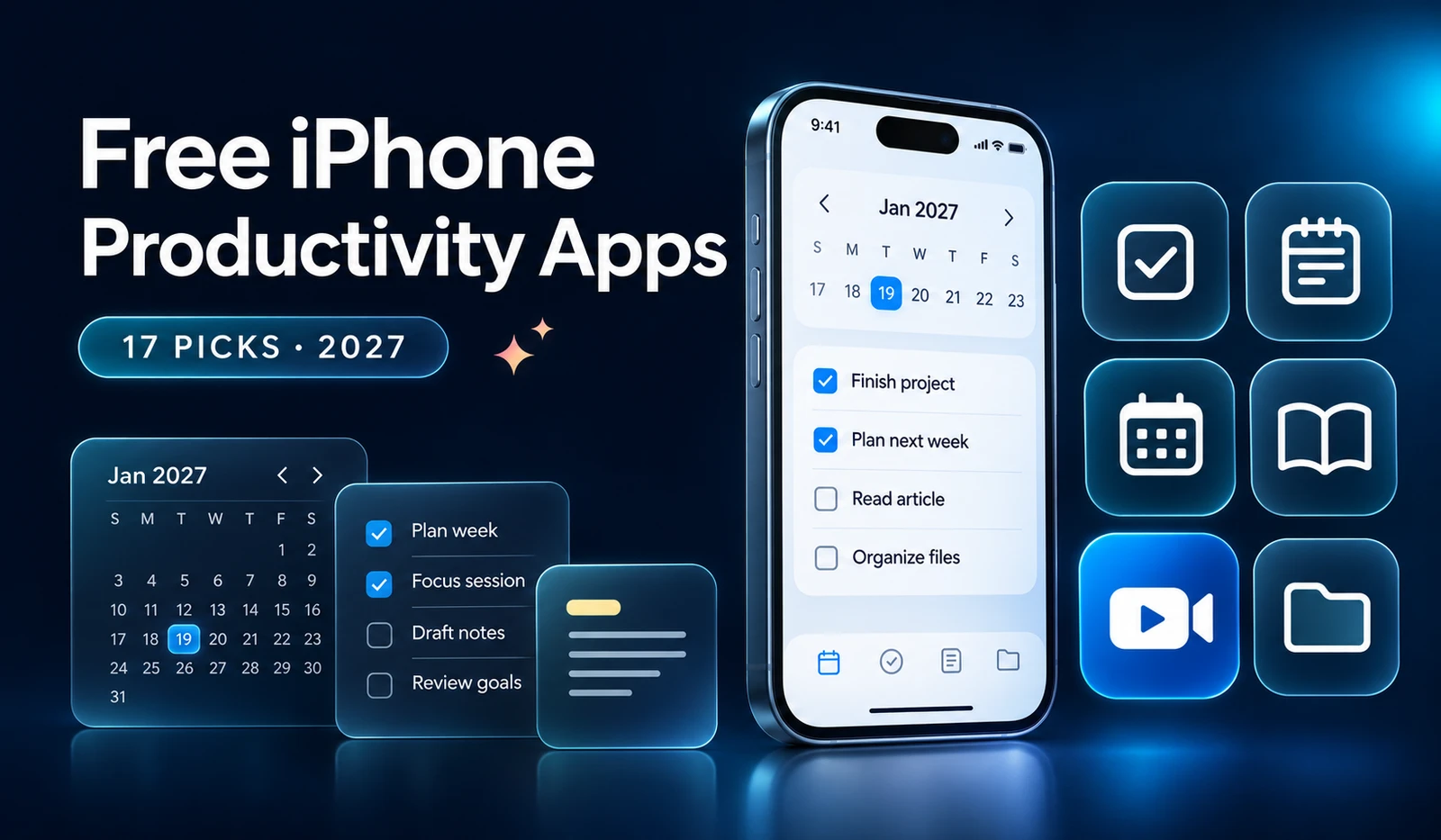
The best free iPhone productivity apps for 2027 are the ones you can keep using without immediately hitting a paywall. Start with Apple Reminders for tasks, Google Calendar for your schedule and Apple Notes for quick capture. Add a specialist when you need one. Below are 17 options across seven categories, with the useful free features, the limits that matter and a practical reason to choose each.
Quick comparison: 17 free iPhone productivity apps
Free-plan details were checked on November 26, 2026, for this 2027 guide. “Free” means there is a usable free version, not that every feature shown in an app’s marketing is included.
| # | App | Best use | What the free version gives you |
|---|---|---|---|
| 1 | Apple Reminders | Everyday tasks | Lists, subtasks, recurring reminders and shared lists |
| 2 | Todoist | Tasks across different devices | Five personal projects, reminders, list and board layouts |
| 3 | Microsoft To Do | Choosing today’s priorities | My Day, recurring tasks, steps and shared personal lists |
| 4 | Google Calendar | Appointments and time blocks | Personal calendars, events, tasks and shared calendars |
| 5 | Apple Notes | Quick notes and scanned documents | Notes, checklists, folders and document scanning |
| 6 | Notion | Organizing information around a project | Personal pages and databases, with upload and AI limits |
| 7 | Google Keep | Short notes across platforms | Notes, checklists, labels, colors and collaboration |
| 8 | Trello | Visual project tracking | Ten boards and ten collaborators per Workspace |
| 9 | Instapaper | Saving articles to read later | Unlimited saves, folders and offline reading |
| 10 | TubeOnAI | Reviewing long source material | Starter plan with 400 credits and three channel subscriptions |
| 11 | Structured | Building a visual daily plan | Timeline tasks, subtasks, inbox and focus timer |
| 12 | Focus To-Do | Timing focused work sessions | A free starting point for the timer-and-task workflow |
| 13 | Google Drive | Accessing and sharing documents | 15 GB shared with Gmail and Google Photos |
| 14 | Adobe Scan | Capturing paperwork | Scanning, basic cleanup and searchable PDFs |
| 15 | Bitwarden | Keeping logins available | Unlimited passwords and devices on the free plan |
| 16 | Apple Shortcuts | Automating small routines | Multi-step shortcuts using supported app actions |
| 17 | Canva | Making useful visual content | A free editor, templates and free design assets |
How we chose these apps
We reviewed US App Store listings, developers’ feature pages and free-plan documentation. We looked for an ongoing free option with a useful everyday job, then noted where subscriptions, storage caps or credits change the decision. This is a researched selection, not a claim that we benchmarked every app on every iPhone.
The numbering follows the categories. TubeOnAI is our own product, included at #10 for video, podcast and article workflows. The screenshot galleries use developers’ actual App Store images, which may also show paid features.
Tasks and calendars
A task list tells you what needs doing. A calendar shows when you have time to do it. Choose one of each before adding another planning app.
1. Apple Reminders: for everyday to-do lists

Apple Reminders is the first task manager to try if most of your work happens on Apple devices. You can capture a task with Siri, give it a due date and break it into smaller steps without setting up a new account or choosing a subscription.
Shared lists are useful for a household shopping list or a small project. Tags and Smart Lists help when you want to separate errands from work without moving everything into different apps.
Free access: The core app is free. Some features depend on your software version, account type or device. Use iCloud for Apple’s full Reminders experience, as explained in its account and syncing guide.
Try this: Keep Work, Personal and Errands lists, then use Today for the few tasks you actually plan to finish.
2. Todoist: for tasks that follow you between devices

If your iPhone sits beside a Windows laptop or an Android tablet, Todoist is a useful alternative to an Apple-only setup. Quick Add recognizes task details in ordinary language, so capturing “Send the draft Friday” takes less effort than filling out several fields.
Projects, sections and priorities help you separate a deadline from the smaller actions that lead to it. Among task managers for iPhone, it is a sensible choice when cross-platform access matters more than a completely native Apple experience.
Free access: The Beginner plan includes five personal projects, reminders, list and board layouts, three filter views and one week of reporting history. The calendar layout and more extensive reporting are paid features.
Try this: Give each active project one next action. Review those actions before adding more tasks.
3. Microsoft To Do: for a short daily plan

Microsoft To Do works well when you want a straightforward list rather than a large project-management system. Its My Day view lets you pull a few items from your existing lists into today’s plan.
You can add reminders, recurring due dates, notes and smaller steps. Shared lists in personal accounts are handy for coordinating a trip or a weekly shopping list. Its connection with Outlook also makes it worth considering if Microsoft tools already organize your working day.
Free access: Microsoft describes To Do as a free app. A Microsoft account is required; some workplace integrations depend on your organization’s account and settings.
Try this: Choose three priorities in My Day each morning. Keep the rest in their original lists so today’s view remains useful.
4. Google Calendar: for seeing your week clearly

Google Calendar makes the biggest difference when appointments, shifts and personal plans keep colliding. Use separate calendars for work and home, then view them together before agreeing to another commitment.
Events from Gmail, shared calendars and tasks make it more useful than a simple date grid. On a small screen, switching between a schedule view and a weekly view helps you move from “What is next?” to “Where can this work fit?”
Free access: Personal scheduling is free with a Google account. Some professional booking and workplace features require a subscription; they are separate from the basic calendar, as Google’s Calendar overview explains.
Try this: Put fixed commitments in first, then reserve a realistic block for an important task. Leave room for travel and breaks.
Notes and project planning
The best organization apps for iPhone give information a place you will remember to check. A quick note, a project document and a team board solve different problems.
5. Apple Notes: for fast capture and paperwork

For a phone number, meeting note or receipt, opening a complicated workspace is usually unnecessary. Apple Notes handles quick text, checklists, attachments and scanned documents in one familiar app.
Folders, tags and links between notes help when the collection grows. A note can hold the agenda, supporting PDF and follow-up checklist for a meeting, so you are not searching three places while someone waits.
Free access: Notes is free. If you sync through iCloud, its data uses your storage allowance alongside other iCloud content. Apple’s free account includes 5 GB; see its iCloud storage overview.
Try this: Make an Inbox folder for quick capture. File or delete those notes once a week instead of inventing a folder system before you need one.
6. Notion: for a personal project hub

Notion earns its place when notes need context: the brief, deadline, reference links and next steps for the same piece of work. A simple page with a small database can keep those details together.
It is less convenient for a two-word note you need to capture immediately. Use it for information you expect to revisit, reorganize or share, rather than making every passing thought part of a dashboard.
Free access: Notion’s Free plan supports personal organization, with a 5 MB limit per uploaded file. Team workspaces have additional restrictions, and Notion AI is a trial on the Free plan. Do not choose it expecting unlimited free AI.
Try this: Build one page for a current project with sections for the brief, decisions, useful links and next actions. Add databases only when the page needs them.
7. Google Keep: for small notes you need to find again

Google Keep suits short lists, reference photos and notes you need on both your iPhone and a non-Apple computer. Colors and labels give a little structure without asking you to maintain a full workspace.
A shared list can replace a stream of messages about what to buy or bring. It is also useful for storing a photo with a short explanation, rather than leaving that information buried in your camera roll.
Free access: Keep’s core notes and collaboration features are free with a Google account. One detail matters for reminders: Google moved Keep reminders to Tasks. Notifications now come through Tasks or Calendar, and location-based Keep reminders are no longer supported.
Try this: Give active notes one label and archive them when the job is finished. A short working view is easier to use than a wall of old notes.
8. Trello: for projects you want to see as a board

Trello is an approachable iPhone project management app when you think in stages. Cards move between lists, making it easy to see what is waiting, what is underway and what is finished.
That works for a small content calendar, an event or a shared home project. A card can hold the next action, due date, checklist and discussion, so each item has more context than a line in a task list.
Free access: Trello’s Free plan includes up to ten boards and ten collaborators per Workspace, unlimited cards, 10 MB attachments and 250 Workspace command runs per month. Calendar, Timeline and several other expanded views require paid access.
Try this: Start with three lists: Next, Doing and Done. Put a clear action on each card before adding automations.
Reading and learning
Saving a source and understanding it are different jobs. These two apps help at different points in that process.
9. Instapaper: for a reading list you can use offline

If you keep browser tabs open because you intend to read them, Instapaper gives those articles a better home. Save a page from the share menu, then read it later in a cleaner format, including when you are offline.
It is a reading queue rather than another recommendation feed. Folders help you separate material you need for work from something you saved for a quiet weekend.
Free access: The free account includes unlimited saves, syncing and folders. Full-text search, permanent archives, the PDF reader and unlimited notes require Premium. Free notes are limited to five per month.
Try this: Keep a short “This week” folder and clear it before saving another batch. If an article only needs a quick relevance check, our web article summarizer offers a different way to preview it.
10. TubeOnAI: for long videos, podcasts and articles

A saved video is not much help if you never find an hour to watch it. TubeOnAI’s iPhone app helps you review the main ideas from videos, podcasts, articles and documents before deciding what deserves a closer look.
For example, use a YouTube summary to preview a tutorial, then return to the original demonstration for the steps you need. Audio playback makes summaries useful during a commute. The broader platform also supports follow-up questions when a point needs clarification.
Free access: The Starter plan includes 400 credits and three channel subscriptions. It is a limited allowance, not unlimited transcription or summarization. Check the current plan details before processing a long reading or listening list.
Choose it when: Your bottleneck is getting through source material. Use the original recording or document to verify quotations, numbers and instructions before relying on them.
Focus and daily routines
Planning is useful only if there is time left to do the work. These apps make a session or a day easier to see.
11. Structured: for planning a day visually

Structured puts tasks on a visual timeline. That is helpful when a long to-do list hides the fact that everything on it cannot fit into one afternoon.
Give each task a time and duration, then leave gaps between commitments. The inbox holds ideas that do not need a slot yet, while subtasks let you split something large into work you can schedule.
Free access: Its free feature list includes timeline tasks, an inbox, subtasks, notes and notifications. Calendar and Reminders imports, recurring tasks and AI planning require Structured Pro. The free version is most useful if you are comfortable planning manually.
Try this: Lay out tomorrow’s three main tasks before bed. If the timeline is already full, move something before the day starts.
12. Focus To-Do: for working on one task at a time

Focus To-Do connects a timer to a task, which is useful when “work on the project” keeps turning into checking messages. Name the next action, start a session and give yourself a clear stopping point.
The basic pattern is simple: a period of focused work followed by a short break. The app also offers task organization and time reports, but you can begin without building an elaborate tracking system.
Free access: The iPhone app is free to download with optional in-app purchases. Use the basic timer workflow first; check the upgrade screen before depending on advanced reporting or synchronization. The developer’s feature overview describes the wider toolset without presenting every feature as free.
Try this: Write “draft the opening paragraph,” not “finish the article,” before starting a session.
For a break when you want to learn something, our apps for replacing mindless scrolling guide offers short lessons, source summaries and review sessions with a clear stopping point.
Files and paperwork
These apps reduce a different kind of wasted time: finding the right file and turning a paper document into something usable.
13. Google Drive: for files you need on more than one device

Google Drive is useful when a file needs to move between an iPhone, a laptop and another person. Store the document once, share the right access and avoid sending another attachment every time you make a change.
You can mark important files for offline access and use the camera to scan paperwork. For shared documents, decide who should be able to view or edit them before sending the link.
Free access: A Google account includes 15 GB shared across Drive, Gmail and Google Photos. It is not 15 GB exclusively for documents. Extra storage and some AI or workplace features require paid access.
Try this: Keep a small folder of files you regularly need away from your desk. For lengthy source documents, see our Google Drive summarizing workflow.
14. Adobe Scan: for turning paper into searchable PDFs

Receipts and handouts are easier to use when they become readable files rather than loose photos. Adobe Scan detects document edges, cleans up the capture and saves scans as PDFs.
Text recognition makes a scan more useful when you need to find a name or reference later. Scan the pages in order, check that no text is cut off and rename the result before sharing it.
Free access: Adobe provides free scanning and PDF sharing. Advanced editing, document conversion and combining files are paid capabilities. The App Store listing also distinguishes the free OCR allowance from the larger subscription allowance.
Try this: Give a document a name you can search for next month, such as “supplier-name-invoice-November.” For reading dense material afterward, our PDF summarizer can help you preview its content.
Passwords and automation
Productivity also includes the routine work you should not have to repeat: finding a login or carrying out the same sequence of taps.
15. Bitwarden: for passwords across your devices

Bitwarden is worth considering when your accounts are scattered between browsers, devices and memory. A password manager keeps the login details together and can fill them into supported apps and websites.
It is particularly useful if your iPhone is only part of your setup. You can use the same vault on another operating system without choosing a different password manager for each device.
Free access: Bitwarden’s personal Free plan includes unlimited passwords and unlimited devices. Premium adds features beyond the core vault; the free plan is not limited to a single phone or computer.
Try this: Set up autofill, then move the accounts you use every day into the vault. Keep your recovery information somewhere you can access independently.
16. Apple Shortcuts: for repeated actions

Apple Shortcuts is useful when you notice yourself doing the same sequence several times a week. It joins supported actions together so a routine can start from one tap or a Siri request.
Start with a small job: turn shared material into a PDF, open the tools you use for a work session or capture an idea in a consistent format. A shortcut you understand and use is more valuable than a complicated automation you cannot maintain.
Free access: Shortcuts is free. Connected services still keep their own account requirements and charges, and an app must expose the action you want to use. Some actions require a confirmation when they run.
Try this: Browse the Gallery for a routine close to what you need, inspect its actions and adapt one step at a time.
Design and content
17. Canva: for quick design work on your phone

Canva helps when the task is a presentation cover, event graphic or social post that needs to look consistent without a long editing session. Start from a suitable layout, replace the content and keep the design simple enough to read on a phone.
The mobile app is most comfortable for quick edits and small pieces of work. For dense slides or detailed layouts, a larger screen gives you more room to check spacing and alignment.
Free access: Canva has an ongoing Free plan. Use assets marked free or your own uploads; premium elements, some editing tools and AI features have paid access or usage limits. A free download does not make the entire template library free.
Try this: Make one reusable layout for a recurring post. If you already have a longer source piece, these content repurposing ideas can help you choose what belongs in the shorter format.
How to choose a setup you will actually use
The best apps for productivity fit the way your day already works. Choose a small starting set, then add a tool when you can name the problem it will solve.
| Your situation | A sensible starting set | Why it works |
|---|---|---|
| You want fewer missed personal tasks | Reminders, Notes and your calendar | Capture the action, keep the detail and reserve the time |
| You work between Apple and Windows devices | Todoist or Microsoft To Do, Google Calendar and Drive | Your tasks, schedule and files remain accessible |
| You study from lectures and reading lists | A calendar, one notes app and TubeOnAI | Plan study time, keep notes and preview lengthy sources |
| You manage a small creative project | Trello, Drive and Canva | Track the stage, share the files and prepare the output |
| You plan well but struggle to start | Structured or Focus To-Do | Make the next action and the available time visible |
For a study-specific setup, see our guide to organizing classes around work shifts. For tablet workflows, our iPad productivity apps guide covers project management and Apple Pencil options. If your other phone runs Android, compare these Android organization tools.
Frequently asked questions
What is the best free iPhone productivity app?
Apple Reminders is a good first choice for everyday tasks if you use Apple devices. Microsoft To Do is a strong free alternative across platforms. For a different job, choose a different tool: Calendar for appointments, Notes for capture or TubeOnAI for reviewing long videos and articles.
Which productivity apps for iPhone are free without a subscription?
Apple Reminders, Notes and Shortcuts provide their core functions without an app subscription. Microsoft To Do is free, while Google Calendar and Keep offer free personal use. Cloud storage, connected services and optional upgrades can still have separate costs.
Which are the best personal productivity apps for iPhone?
Start with one task manager, one calendar and one place for notes. Reminders or Microsoft To Do, Google Calendar and Apple Notes cover those jobs. The best personal setup is the one you check consistently, not the one with the most dashboards.
What is the best organizer app for iPhone if I prefer a visual plan?
Try Structured for a daily timeline or Trello for a board showing the stages of a project. Their free versions work differently: Structured’s calendar imports and recurring tasks require Pro, while Trello limits free Workspaces to ten boards and ten collaborators.
Do these apps work on iPad too?
All 17 had iPad support in their App Store listings when checked. The layouts and available features can differ between devices. If your main need is handwriting or detailed project scheduling, use the dedicated iPad guide linked above rather than choosing only from a phone workflow.
What should I check before using a free productivity app for work?
Check the feature you need, the free allowance, export options and the accounts your employer permits. The best apps for work are practical to maintain: you should be able to find your information, share it appropriately and take it with you if your needs change.