YouTube Transcript MCP Server: Get Transcripts in Claude and ChatGPT
Find the passage you need in a YouTube video and work with it in Claude or ChatGPT, without copying captions between tabs.

Updated
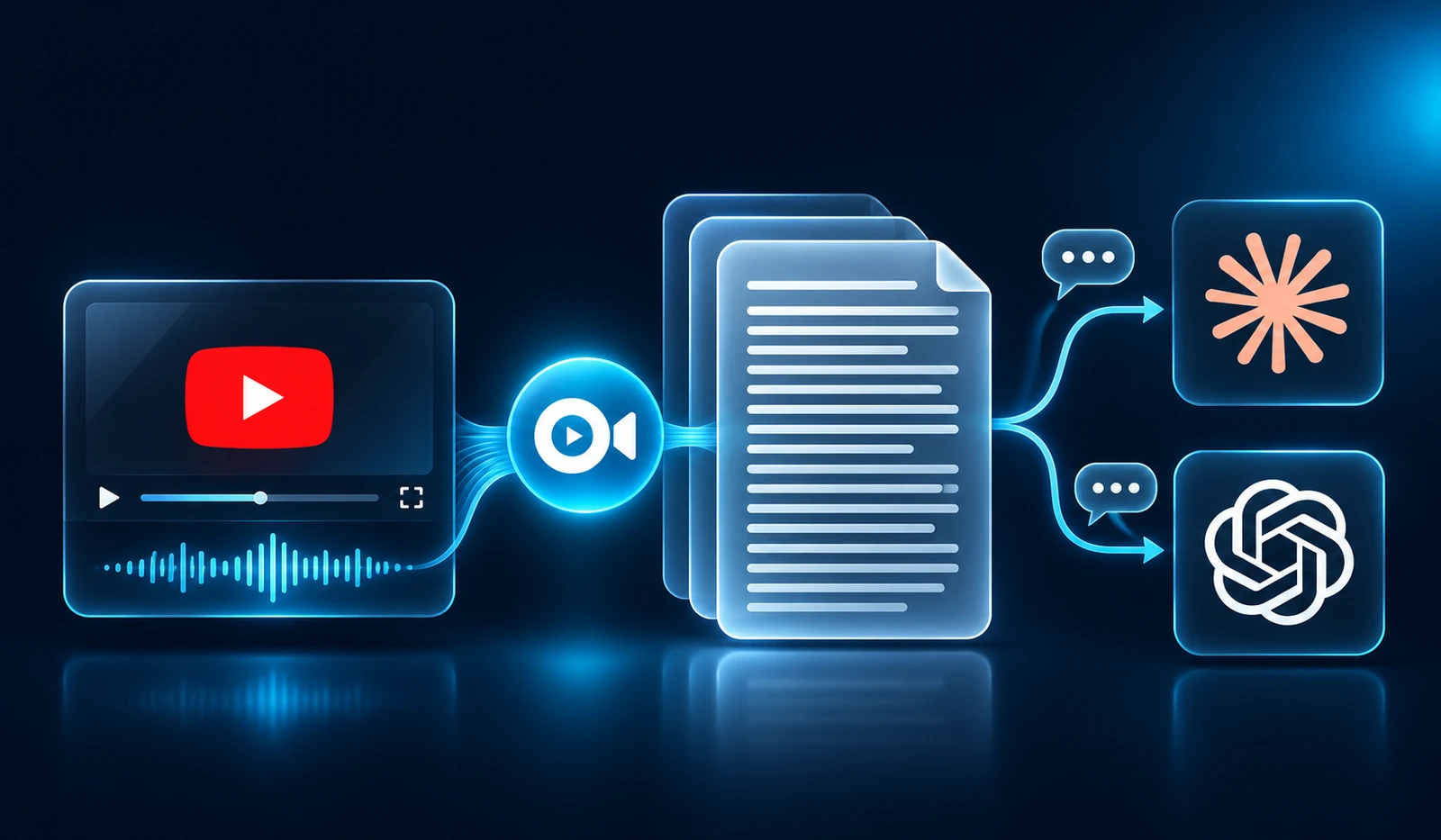
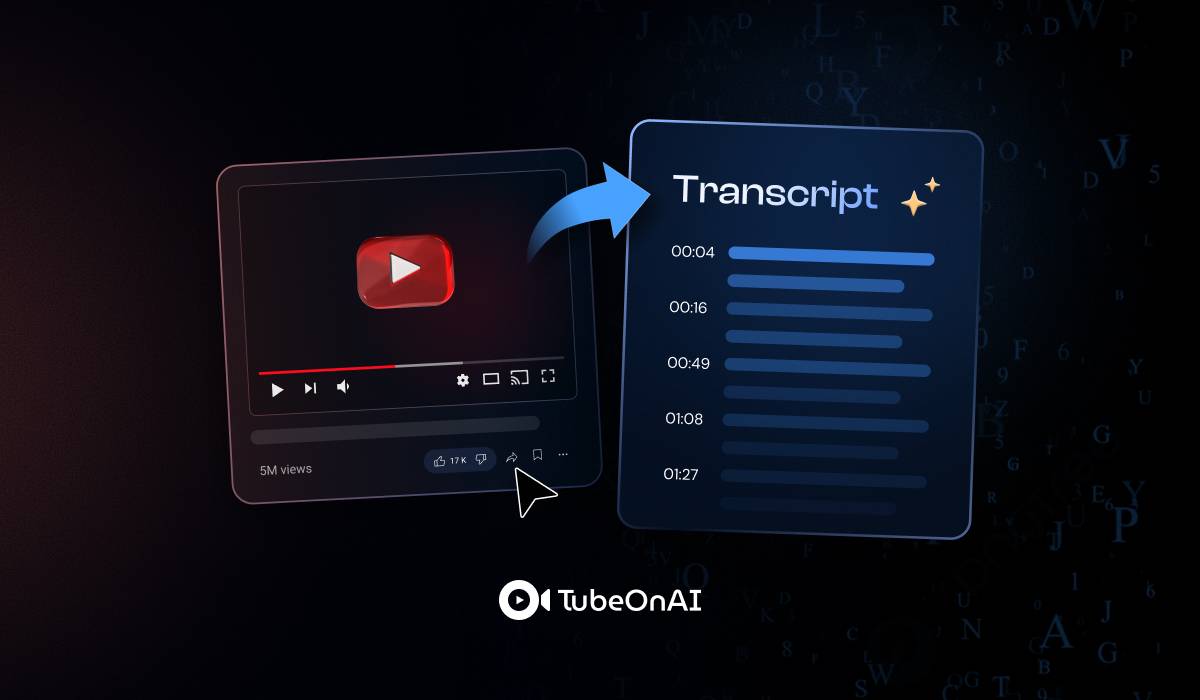
You have the YouTube link. What you need is the text behind it: an explanation to check, a passage to revisit or a tutorial to turn into notes. A YouTube transcript MCP server brings that text into your AI conversation. With TubeOnAI connected, you can retrieve a video’s transcript in Claude or an eligible ChatGPT connection, then ask questions or draft from the source without copying captions between tabs.
The quickest way to get a YouTube transcript through MCP
Connect TubeOnAI, enable its tools in your conversation and ask for the transcript, rather than just a summary. Use one of these two routes:
| Your starting point | What to do |
|---|---|
| The video is already in your TubeOnAI library | Find that saved item and request its transcript. |
| You have a new YouTube link | Process it in TubeOnAI first, then retrieve the transcript from the resulting item. |
The distinction matters in ChatGPT. Reading an existing item and starting a new processing job can require different permissions. If your connection supports retrieval only, add the video in TubeOnAI before asking ChatGPT to find it.
Already connected? Try this:
Use TubeOnAI to find the saved video matching [YouTube video URL]. Retrieve its transcript, not its summary. Tell me the video title and whether the returned text is complete before we work with it.
Replace the bracketed text with your link. If you are setting this up for the first time, follow the Claude or ChatGPT instructions below.
What a YouTube transcript MCP server actually does
MCP stands for Model Context Protocol. It gives AI applications a standard way to call external tools and receive their results, as described in the MCP server documentation.
For this workflow, TubeOnAI handles the source content and transcript retrieval. Claude or ChatGPT uses the returned text to answer your question. MCP provides the connection between them; it is not a speech recognition engine itself.

A summary is useful when you want the main ideas. A transcript is useful when the detail matters: the qualification after a claim, a specific example or the speaker’s wording. Asking for a longer summary does not give you the same source material.
That is the reason to use TubeOnAI here. Its connector exposes transcript retrieval alongside library search, so you can return to a saved video instead of treating every conversation as a new transcription task. The TubeOnAI Claude connector guide documents both capabilities.
What you need before connecting
Have a TubeOnAI account, access to its MCP features and permission to add the connection in your AI app. Check the available credits and API/MCP allowance in your account before processing a long recording. A paid AI chat subscription and a TubeOnAI allowance are separate things.
Start with one public YouTube video that opens normally and contains clear speech. An individual video link makes a better first test than a playlist or channel URL. If you have already saved a suitable video, use that for the first retrieval request.
TubeOnAI’s hosted MCP server URL is:
https://app.tubeonai.com/mcpUse the full URL, including /mcp, when adding a custom connection. The hosted route does not require you to run a server on your computer.
How to get YouTube transcripts in Claude
1. Connect TubeOnAI
Open Connectors in Claude and find TubeOnAI in the directory. Select Connect, sign in to TubeOnAI and review the access request before choosing Allow. Back in your conversation, enable TubeOnAI in the tools menu.
In Claude’s current interface, Connectors is under Customize. If you are adding a custom connection instead of using the directory entry, choose Connectors → + Add → Add custom connector, enter TubeOnAI’s MCP URL and complete the offered sign-in flow. Workspace permissions can affect who may add it. See Claude’s current remote connector instructions.
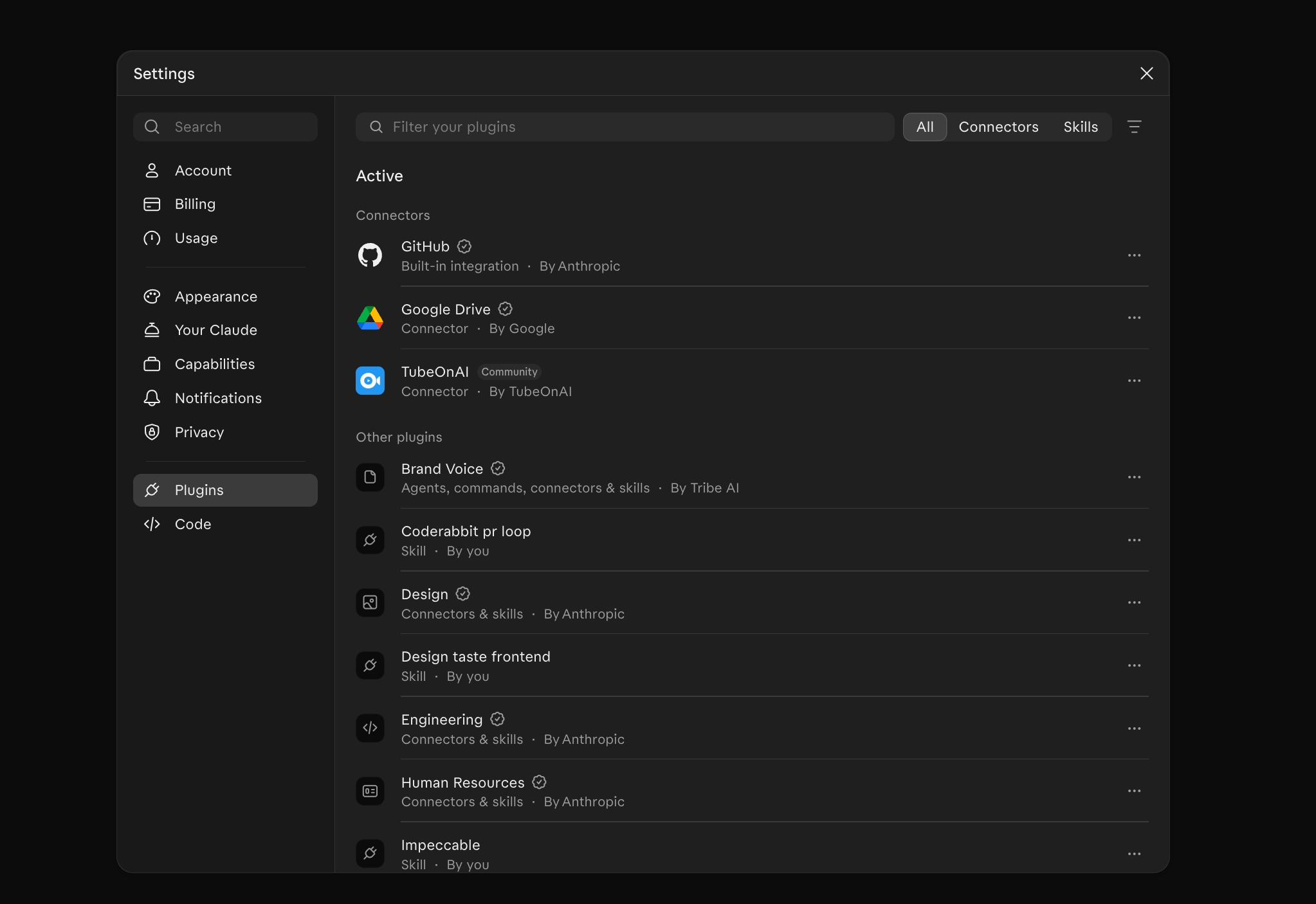
Your Claude interface may also list installed connectors under Settings → Plugins, as shown below.
2. Find the video or process a new link
For an existing library item, use the quick-start prompt above. For a new video, make both parts of the request explicit:
Use TubeOnAI to check whether [YouTube video URL] is already in my library. If it is, reuse that item. Otherwise, process the video. Once it is ready, retrieve the transcript. I need the source text before you summarize or rewrite it.
A new job may still be processing when the first tool response arrives. Let Claude check that job’s status and fetch the finished result. Repeatedly asking it to create the same item makes it harder to tell which result you are using.
3. Check that Claude retrieved the transcript
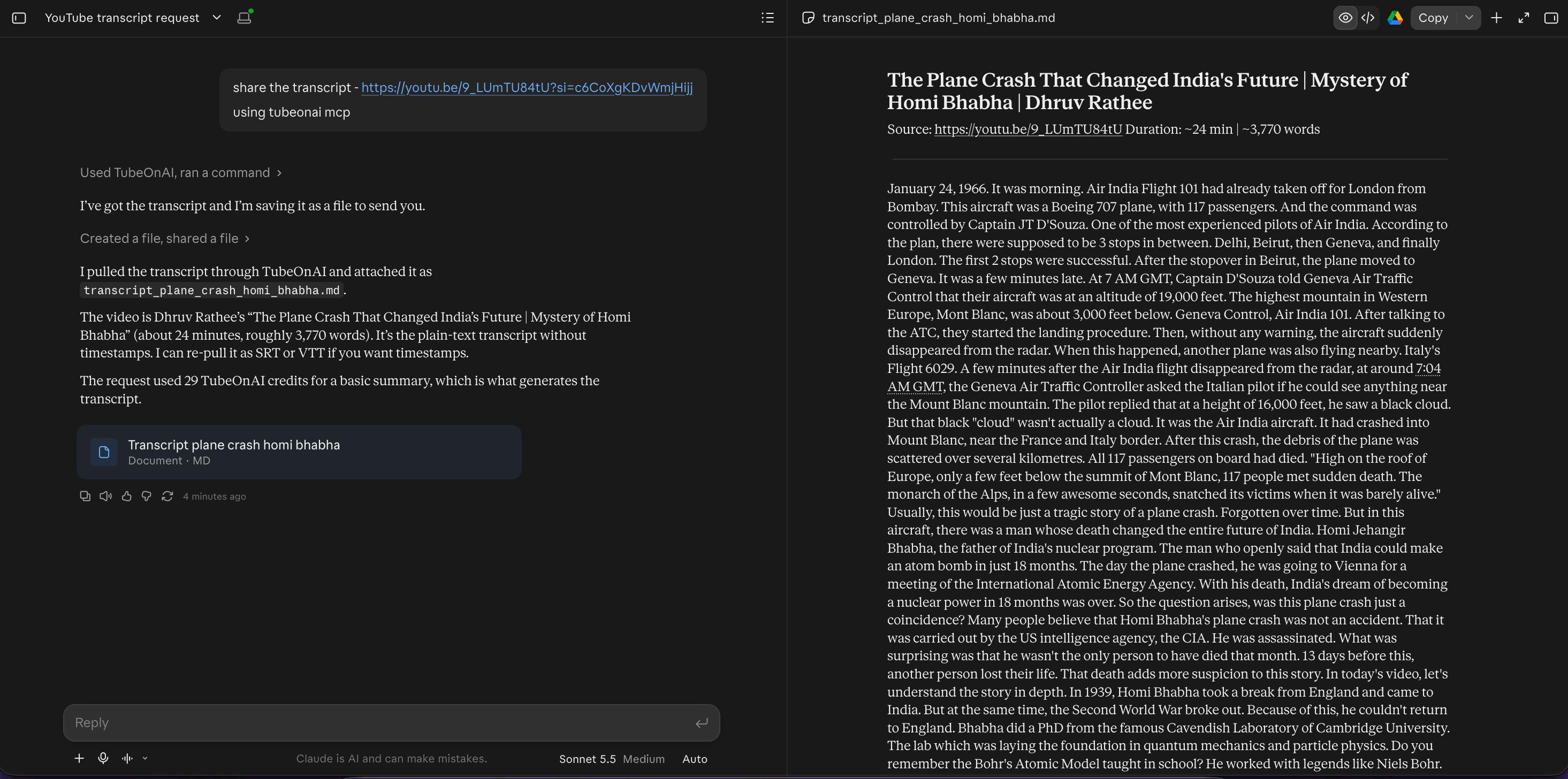
Look for a TubeOnAI tool call and a result tied to the right video. A fluent answer about the topic is not proof that the transcript was retrieved.
If Claude returns only key points, follow up:
Retrieve the transcript for that same saved item. Keep the source wording. If the result is shortened, identify what is missing rather than presenting it as the full transcript.
Depending on the connection, the tool may appear as a dedicated get_transcript tool or a transcript action within query_content. TubeOnAI documents these interfaces in its connector guide and MCP setup reference. Use the tools your connection actually exposes rather than copying a guessed tool schema.
4. Ask a question the transcript can answer
Start with a narrow question. It is easier to check whether Claude found the right passage than to assess a sweeping analysis of an hour-long recording.
Using only this transcript, find where the speaker explains [specific topic]. Give me the explanation in plain language and a short supporting excerpt. Include a timestamp only if the source result provides one.
Once you have checked the passage, continue into notes, a comparison or a draft. Keep the source link with the result so you can return to the recording.
How to get YouTube transcripts in ChatGPT
1. Check your account’s MCP access
OpenAI currently documents full custom MCP support on ChatGPT Business and Enterprise/Edu on the web. Pro supports custom servers with read/fetch permissions. Workspace roles and enabled actions also affect what you can use. Check OpenAI’s custom MCP availability and permissions before planning a workflow that starts new processing jobs.
If you have retrieval access but cannot create a new job, process the video with TubeOnAI’s YouTube video tool first. Then retrieve that saved item’s transcript in ChatGPT. Do not assume every ChatGPT account can perform both steps through MCP.
2. Add TubeOnAI’s hosted MCP connection
In the current ChatGPT Plugins interface:
- Open Plugins, select the plus button and choose Add custom MCP server.
- Name it TubeOnAI. Under Connection, enter
https://app.tubeonai.com/mcp. - Configure the offered authentication and complete the TubeOnAI sign-in and authorization flow.
- Review the connection warning, then select Create as a plugin.
- Review the discovered tools and install the resulting plugin.
- Start a new chat, type @ and select TubeOnAI.
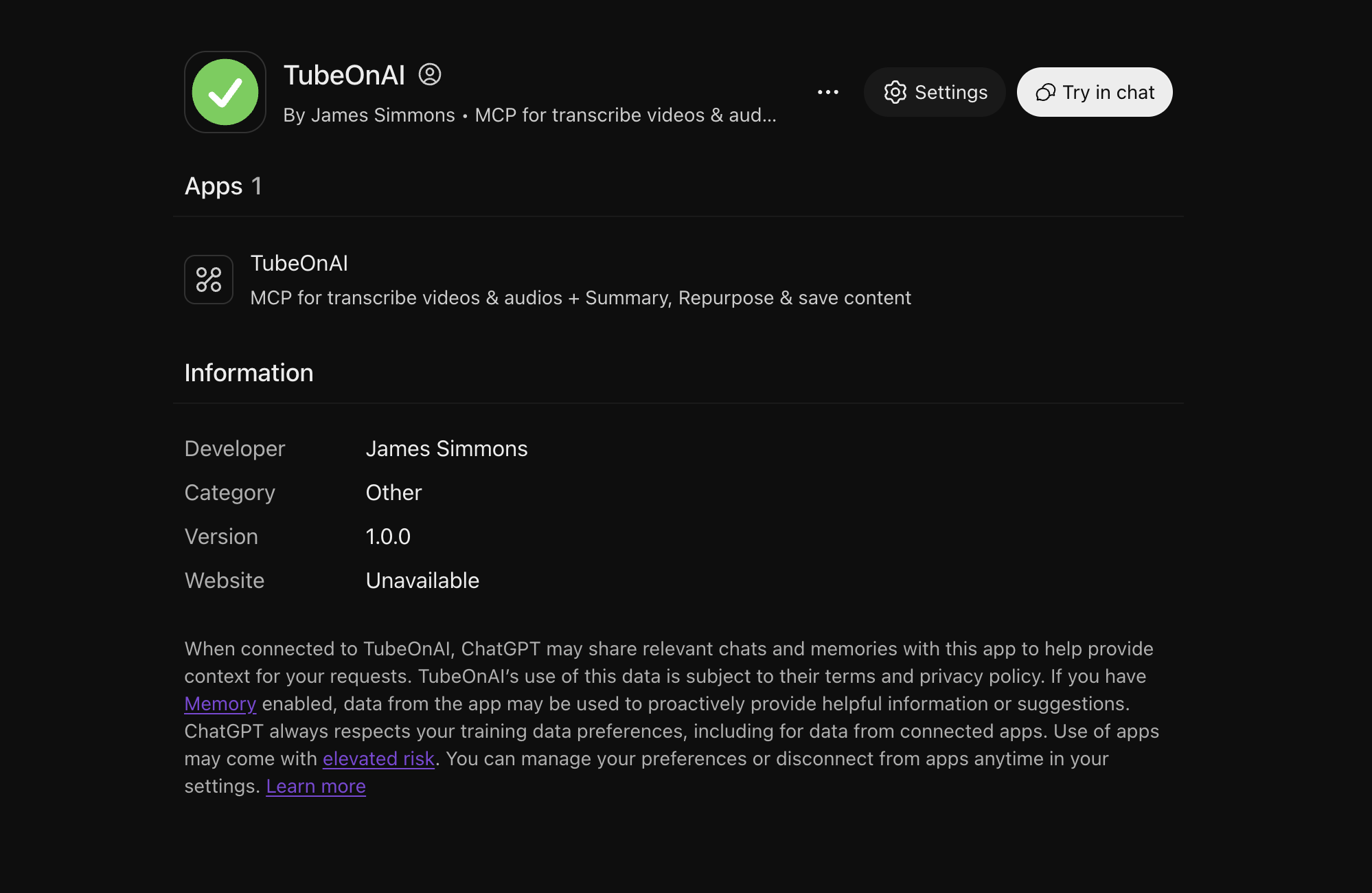
These steps follow OpenAI’s connection and testing guide. Accounts using the older interface may instead show Settings → Apps → Create, followed by Scan Tools. The current Plugins flow does not require turning on Developer Mode first.
3. Test retrieval before asking for a finished draft
Choose a video already in your TubeOnAI library. Ask:
Use TubeOnAI to find [video title or YouTube URL] in my library. Retrieve its transcript and identify the source title and URL. Do not use web search or your general knowledge as a substitute for the transcript.
Check the tool result and source match. If your connection also allows new processing, use the new-video prompt from the Claude section next. If that action is unavailable, keep adding new sources in TubeOnAI and retrieving them in ChatGPT.
For work chats, ask your workspace administrator about a missing connection or disabled action. Rephrasing the same request will not grant a permission the workspace has withheld.
Prompts for working with the transcript
The useful part starts after retrieval. Give the assistant a job, a source boundary and an output you can check. The following prompts work as starting points in either assistant; they are instructions to try, not examples of recorded tool results.
Find a passage without losing its context
Find the section about [topic]. Explain what the speaker claims, then show a short excerpt with the surrounding context. Separate the speaker’s words from your interpretation. Say if the transcript does not address my question.
Before publishing a direct quote, replay the original section. Names, numbers and punctuation can need correction even when the overall transcript reads well. Our guide to citing a quote from a YouTube video covers how to retain the source reference.
Turn a tutorial into notes you can follow
Turn this transcript into a practical checklist. Keep the steps in the order demonstrated. List prerequisites separately and flag anything the speaker leaves unexplained. Do not fill gaps with invented instructions.
This is particularly useful when a tutorial mixes the actual steps with anecdotes. Keep the checklist beside the video for the first run, especially if the demonstration contains visual actions that are not spoken aloud.
Build a draft from your own video
Use the transcript of my video to outline a newsletter. Keep the central argument, the examples I actually gave and the qualifications I made. Mark any suggested additions as editorial ideas. Do not turn paraphrases into quotations.
Choose the audience and purpose before requesting the full draft. A newsletter for existing customers needs different context from an introductory blog post. If you want a separate template-based workflow, see repurposing a source into written content.
Compare two videos without mixing their claims
Retrieve the transcripts for these two saved videos. Compare their explanations of [topic]. Label every finding by source, keep disagreements visible and flag questions neither video answers. Do not treat silence as agreement.
For ongoing research, keep related sources in a TubeOnAI collection. Name the exact items you want compared so the assistant does not silently widen the task to your whole library.
Working with long transcripts, timestamps and missing captions
For a long interview, requesting the whole transcript and a finished article in one response makes omissions harder to spot. First establish which source was retrieved and whether the returned text is complete. Then work through the relevant sections before building the final output.
If a tool response or chat output is truncated, ask what portion is available. Request additional sections only where the tool supports them; otherwise, review the full transcript in TubeOnAI. A model’s context limit and a tool’s response limit can differ from the length of the underlying transcript.
Keep these distinctions clear:
- Timestamps: Preserve timings supplied by the source. Ask the assistant to say when they are absent, rather than estimating precise video locations.
- Translation: Label a translated passage as a translation. Keep the original wording when checking a direct quote.
- Visual information: A speech transcript can miss an on-screen chart, an unspoken action or text shown in a demonstration. Review the relevant video section when those details matter.
- Missing captions: An MCP connection does not guarantee that every video can be processed. If a source fails, follow the checks in our guide to videos with no available YouTube transcript.
Troubleshooting the connection and transcript result
| What happens | What to check next |
|---|---|
| The assistant answers without calling TubeOnAI | Enable or select the connection in that conversation, then explicitly request a TubeOnAI transcript retrieval. |
| You are asked to sign in again | Reconnect through the account authorization flow, then retry retrieval of an existing item. |
| Reading works, but processing a new link fails | Check whether the client, workspace and TubeOnAI authorization permit write actions. Process in the app if retrieval is all that is available. |
| The job is still pending | Ask for the status of the existing job rather than submitting the same video again. |
| You receive a summary instead of a transcript | Request the transcript for the same saved item and confirm which tool result was used. |
| The transcript stops partway through | Check for a shortened tool result or response limit. Do not use it as evidence that the full video was reviewed. |
| A particular video fails | Check that the individual source link opens, confirm the right video and review the returned error before retrying. |
If a tool has changed since your ChatGPT connection was approved, its metadata may need refreshing. For a recurring TubeOnAI error, contact support with the source URL, failed action and error message.
When a client asks for a personal MCP token
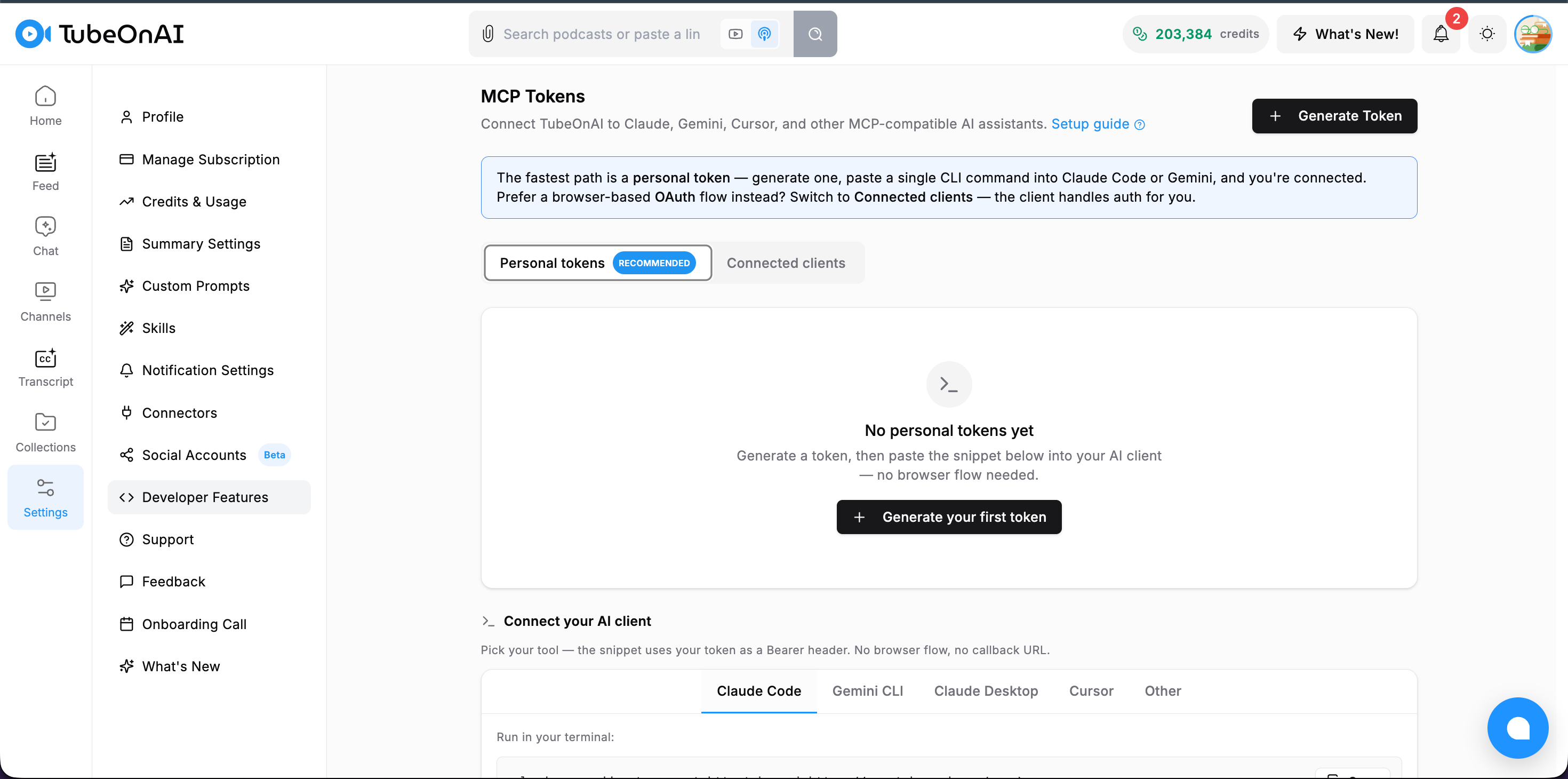
Some MCP clients use a token instead of browser authorization. In TubeOnAI, open Settings → Developer Features → MCP Tokens → Personal tokens → Generate Token. Choose the read and write abilities needed for that client and store the credential in its connection settings.
A personal MCP token is different from a REST API key. Follow the setup reference linked above for that client’s configuration. Do not paste a token into a normal chat message, include it in a screenshot or assume a token is required when browser sign-in is available.
Credits, access and choosing the right workflow
TubeOnAI charges credits for new summaries and regenerations; reading the library does not spend those credits. Connected usage is also subject to the account’s monthly API/MCP allowance. Check your balance and current plan details before a large batch of videos, and reuse saved results when you can.
MCP is most useful when you already work in Claude or ChatGPT and want to ask several questions about a source. If you only need to read a transcript once, opening it directly may be quicker. For a panel beside the video, compare the YouTube transcript browser extension options.
Frequently asked questions
Can Claude get a YouTube transcript just from a link?
A link alone is not evidence that Claude has the video’s spoken text. With TubeOnAI connected, ask it to retrieve an existing transcript or process the supported source first. Check the tool result before relying on a quote or a detailed claim.
Can ChatGPT retrieve a YouTube transcript through MCP?
Yes, where the account and connection support the required retrieval tools. Access to new processing jobs is a separate check. If only retrieval is available, save the processed video in TubeOnAI first and then request that item’s transcript.
Is a YouTube transcript MCP server free to use?
MCP is a protocol, not a free transcription allowance. Costs and limits depend on the service providing the transcript and the AI app you use. Check TubeOnAI’s balance and MCP access separately from your Claude or ChatGPT subscription.
Do I need to install Node.js or host a server?
Not for the hosted connection described here. Use TubeOnAI’s MCP URL in a compatible client and complete authentication. Local MCP packages and command-line setups are different workflows.
Can I ask for exact timestamps and quotations?
Ask for timings only when they are present in the retrieved source, and verify quotations against the recording. A transcript is a useful way to find a passage; the original video remains the place to check how it was said.
Start with one video you know well. Retrieve its transcript, ask a question you can verify and check the supporting passage. Once that works, use the same connection for the research and writing tasks you already do in Claude or ChatGPT.