Get More Done on Your iPhone: 9 Apps Worth Installing
Mobile phones become powerful work machines when users install these specific applications for task management.

Updated
The best productivity apps for iPhone depend on the job you need done: Todoist for capturing tasks, Trello for visual projects, Evernote or Notion for notes, Forest for staying off your phone, Google Calendar for scheduling, Slack for team chat, Habitica for building habits, and TubeOnAI for getting through long videos, podcasts and articles faster. All nine have a free option, and iOS itself ships with tools (Focus, Shortcuts, Reminders) that cover a lot before you download anything.
You don’t need every app on this list. Pick the one or two that fix your biggest bottleneck, and skip the rest.
Quick Comparison: Free Plans at a Glance
Free-plan details below were checked on each app’s official site as of October 2026.
| App | Best for | Free option |
|---|---|---|
| TubeOnAI | Summaries of videos, podcasts, articles and PDFs | Starter plan, free forever (400 credits, 3 channel subscriptions) |
| Todoist | Fast task capture | Beginner plan: 5 personal projects, 3 filter views |
| Trello | Visual boards for projects | Free plan: up to 10 boards per Workspace, unlimited cards and Power-Ups |
| Evernote | Capturing notes, scans and files | Free plan: 50 notes, 1 notebook, 1 device |
| Forest | Focus sessions without your phone | Free tier, optional Plus subscription |
| Slack | Team communication | Free plan: 90 days of message history, 1:1 huddles, up to 10 apps |
| Google Calendar | Scheduling across calendars | Free |
| Notion | All-in-one notes, docs and databases | Free plan for individuals, with limited AI trial |
| Habitica | Turning habits into a game | Free, with in-app purchases |
Which App Do You Actually Need?
Start from the problem, not the app:
- Too much to read, watch or listen to? Use TubeOnAI to get the key points from long videos, podcasts and articles.
- Tasks living in your head? Todoist or Trello get them into one place.
- Notes scattered across apps? Evernote or Notion keep them organized.
- Can’t put your phone down? Forest and Habitica make focus and habits feel like a game.
Take a look at TubeOnAI’s other picks for the best productivity apps of ipad
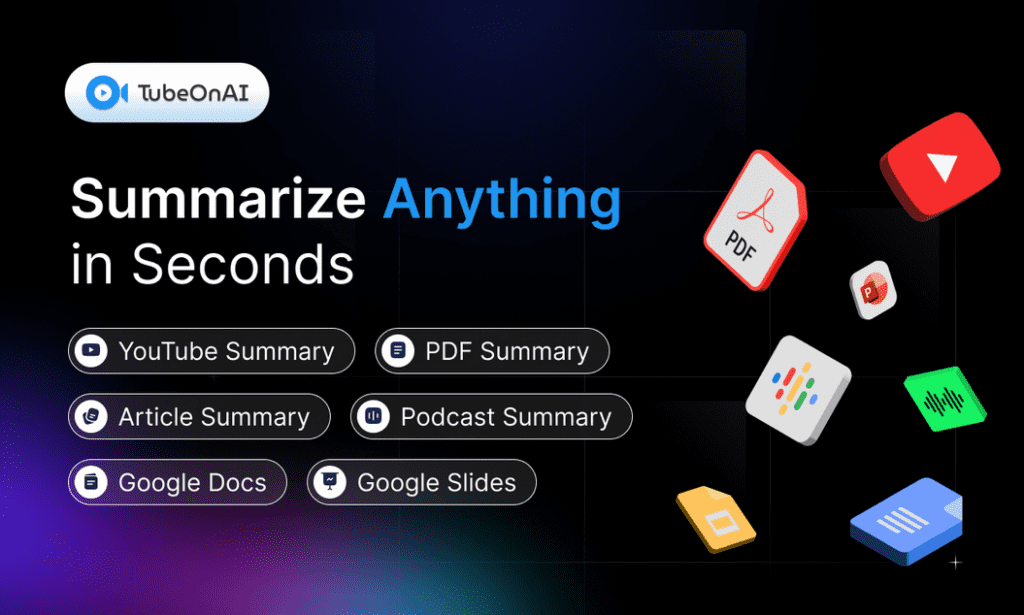
TubeOnAI - Boost Productivity with time-saving summaries
When it comes to handling lots of information, TubeOnAI saves you from watching or reading everything in full. Paste a YouTube video, podcast, web article or PDF, and it gives you a summary of the main ideas and key points.
It’s built for phone use: there’s an iOS app, you can listen to summaries as audio when you’re walking or commuting, and you can ask follow-up questions about a summary when you need more detail. You can also subscribe to YouTube channels so new videos are summarized automatically.
The free Starter plan includes 400 credits and 3 channel subscriptions; paid plans start at $9/month (as of October 2026, see pricing).
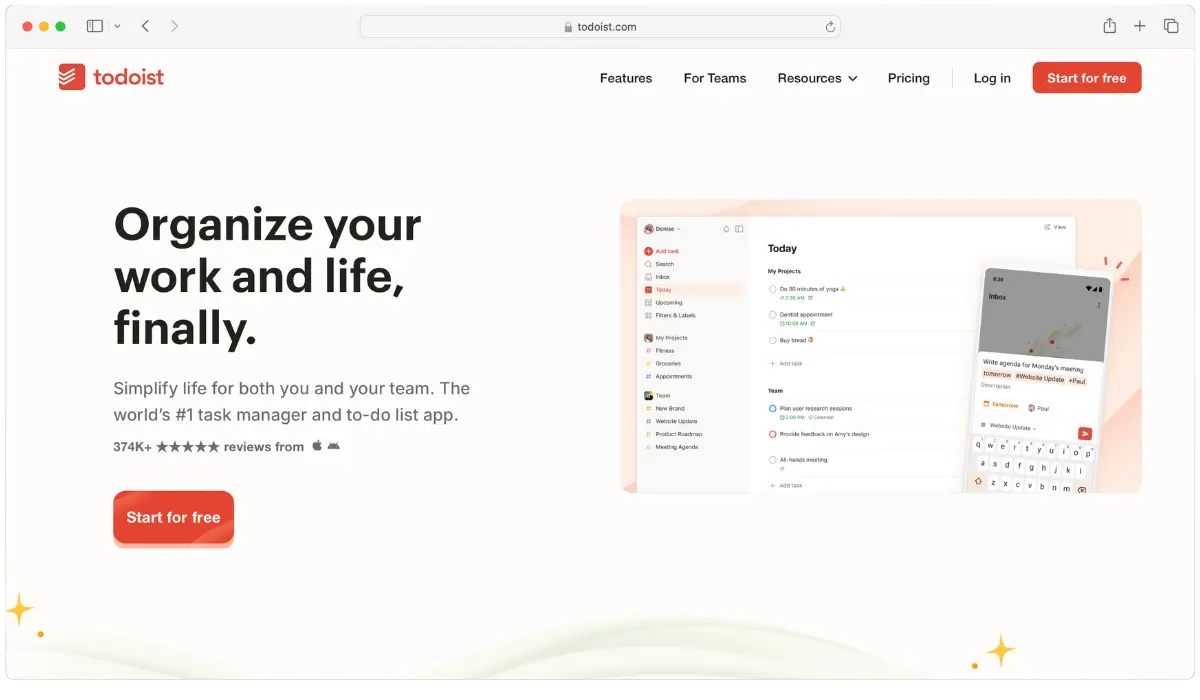
Todoist - Best For Task Management
Todoist is a helpful app that keeps you organized, even when life gets hectic. Its Smart Quick Add lets you type tasks in plain language the moment they come to mind, and it picks up details like dates for you.
Whether you’re jotting down something on your phone or your computer, Todoist keeps everything in sync. It runs on iPhone, iPad and Apple Watch as well as desktop. You can create different projects to separate work from personal life.
Todoist lets you filter tasks to show just what’s important now, and you can switch between list and board layouts (a calendar layout is on paid plans). You can also share projects with coworkers or family members.
Trello - Best for Visual Project Management
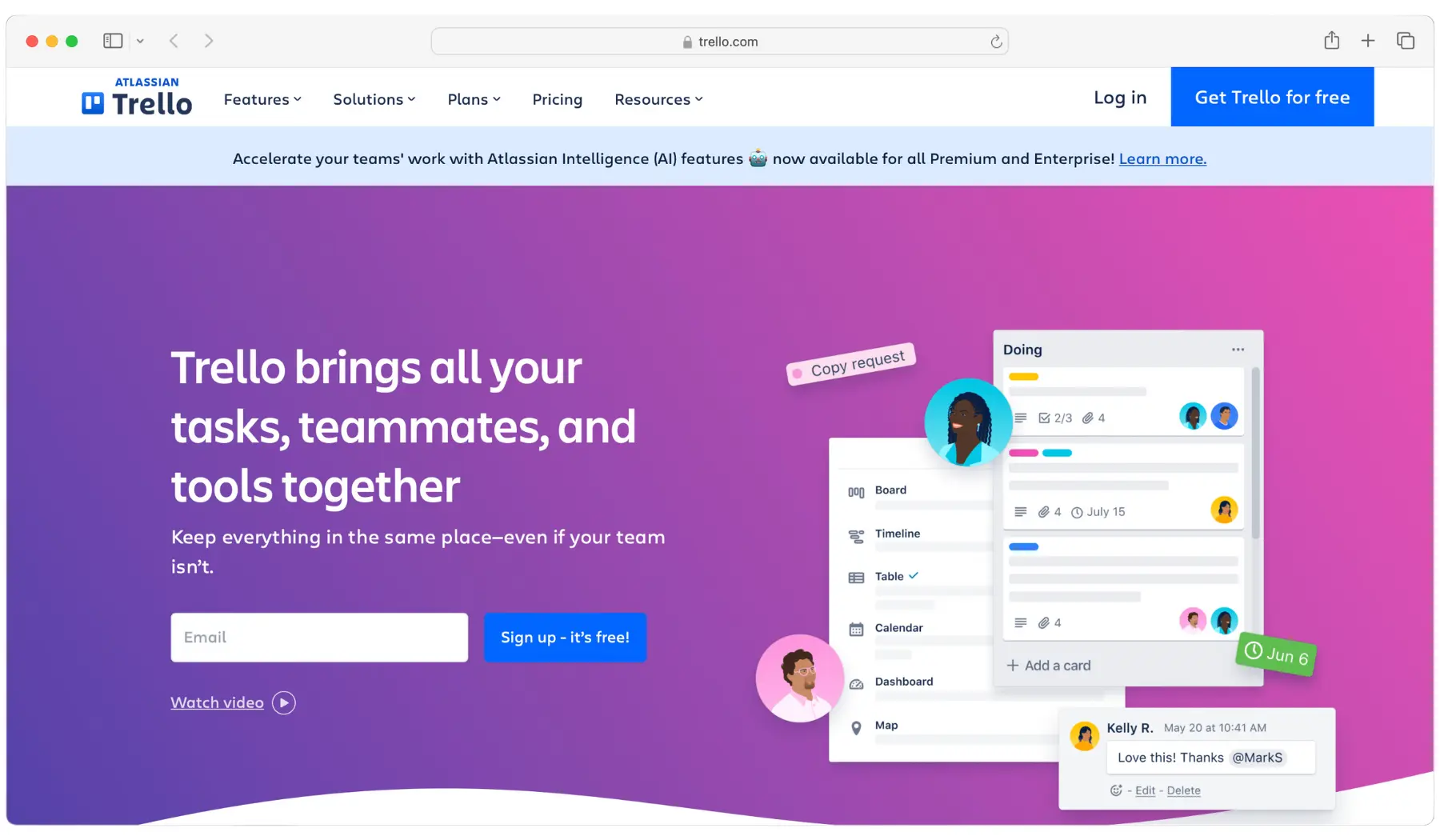
Trello stands out when managing projects and tasks on your iPhone. It’s all about visual organization: cards move across lists on a board, so you can see at a glance what’s in progress and what’s done. Calendar, Timeline and Table views are available on Premium and higher plans.
Trello’s no-code automation is built into every board and handles repetitive steps for you, so you can focus on more important work.
Trello’s Power-Ups are another highlight. These plugins connect Trello to your favourite tools, like Google Drive or Slack, and the free plan allows unlimited Power-Ups per board. You can also use templates to kickstart your projects. These are pre-made setups from Trello and its community.
Evernote - Best for Capturing Notes and Documents
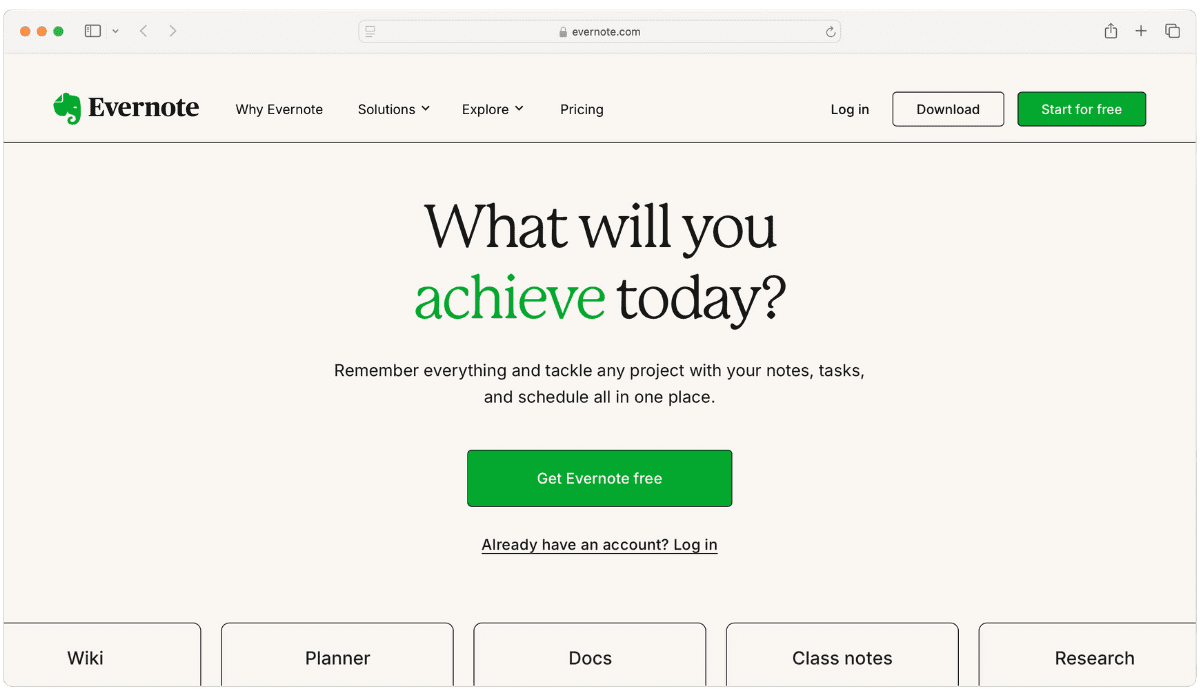
If you need a place to store all your notes, ideas, and documents, Evernote is a solid choice for iPhone. You can capture ideas through text, images, voice notes, or even sketches.
With Evernote, you can organize your notes into notebooks and tag them for easy recovery later, and its search helps you find them again. Notes are available offline, and you can add tasks and reminders to them.
The catch is the free plan: as of October 2026 it’s limited to 50 notes, 1 notebook and 1 device, so most regular users will end up on a paid plan. If you want a free notes app with room to grow, Apple Notes or Notion may suit you better.
Forest - Best Focus App for iPhone
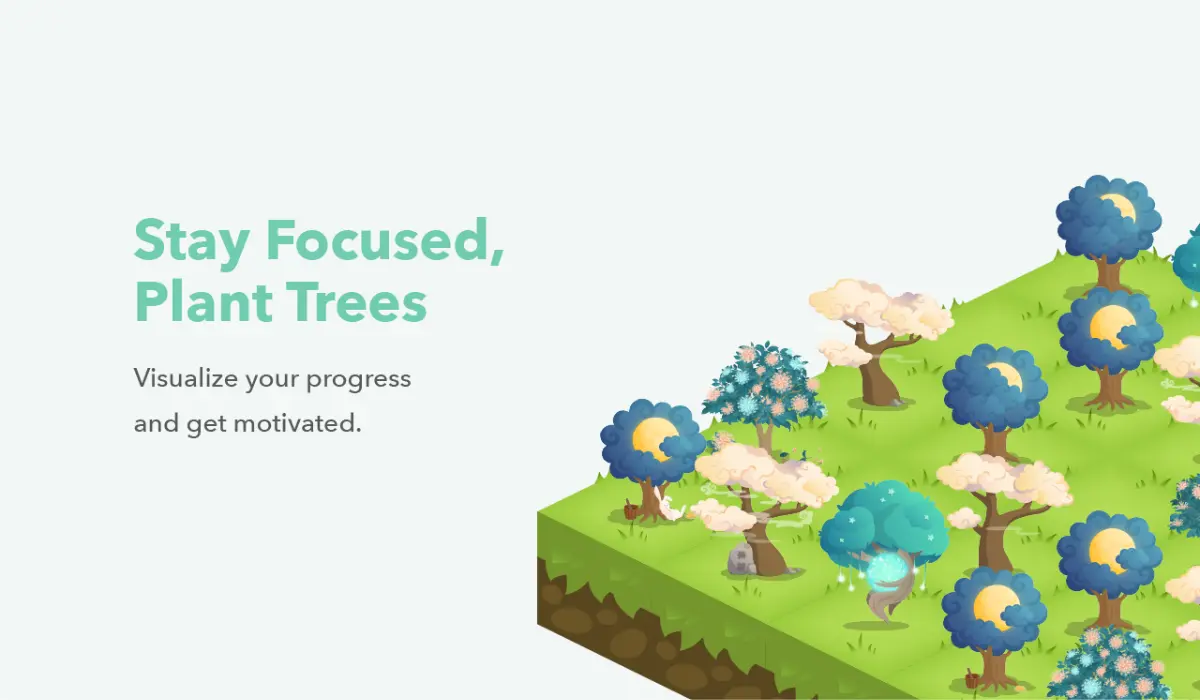
Staying focused can be tough with so many distractions, but Forest turns it into a fun challenge. This app helps you focus by growing virtual trees while you work.
Set a timer for how long you want to concentrate, and as long as you stay off your phone, your tree will grow. Leave to scroll something else and the tree dies. Its Deep Focus mode blocks distracting apps during a session, and it’s included in the free tier.
There’s a feel-good extra, too: Forest partners with the nonprofit Trees for the Future, and you can spend coins earned from focus sessions to have real trees planted.
Slack - Best For Workplace management
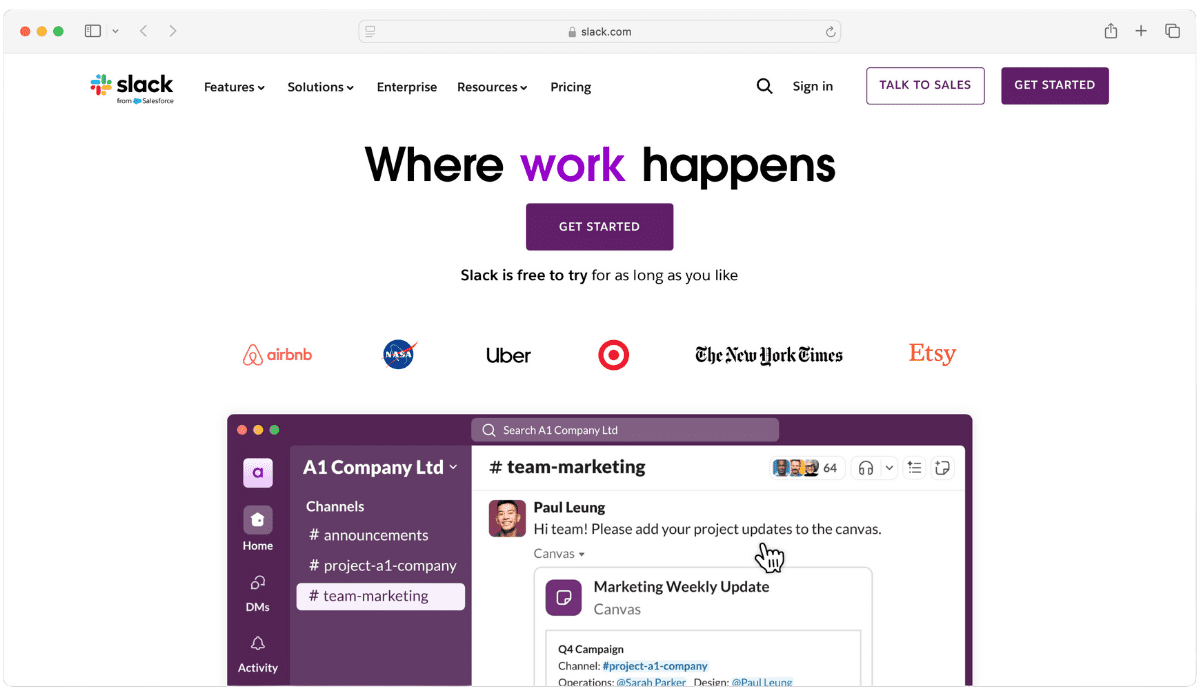
Slack is one of the most useful iPhone apps when it comes to team communication. Instead of juggling emails, chats, and meeting notes, everything happens in one place.
This app lets you create channels for different projects or departments. Sharing files, ideas, and feedback in real-time becomes much easier, and huddles cover quick audio or video calls.
Slack also connects with thousands of apps through its Marketplace, including Trello and Google Drive, and Workflow Builder can automate routine requests. On the free plan, you get 90 days of message history, 1:1 huddles and up to 10 app integrations.
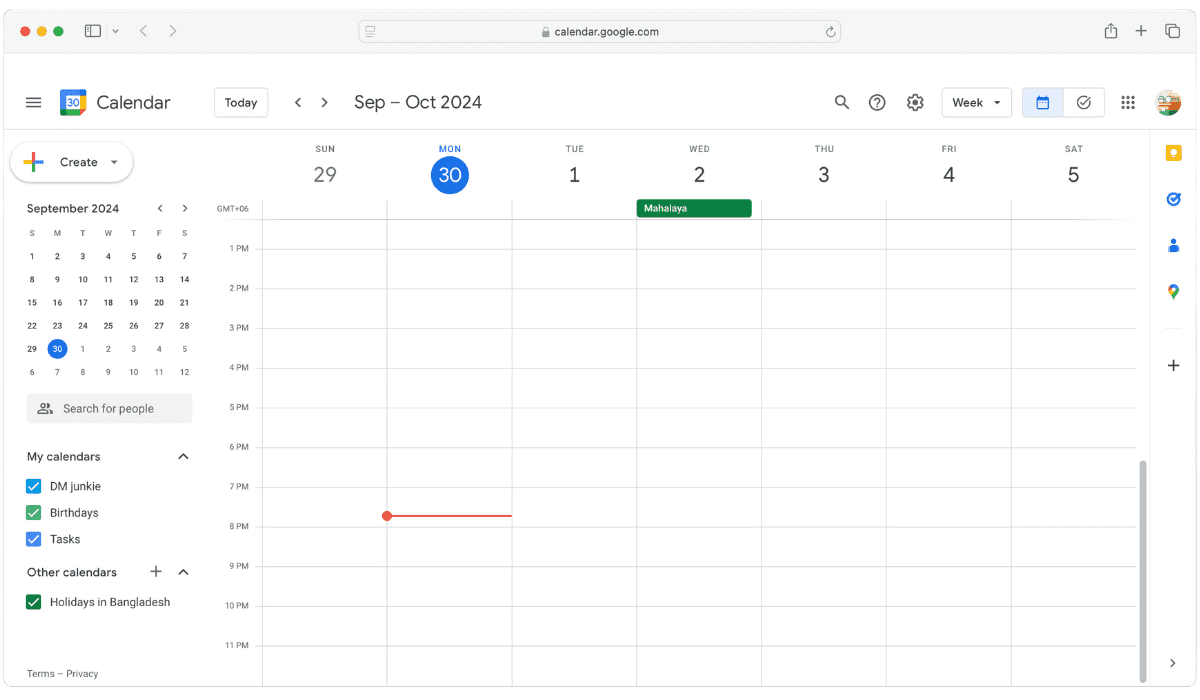
Google Calendar - Best Event Planner app for iPhone Users
Google Calendar is a free app that lets you keep track of your schedule right from your iPhone. It’s easy to use, and syncs across all your devices, so your events and appointments are always up to date.
You can add events quickly and set reminders to make sure you never miss a meeting or important date. The app also lets you create multiple calendars, like for work, personal life, or family events, and view them side by side with the other calendars on your iPhone. Widgets put today’s agenda on your Home Screen.
Google Calendar’s integration with Gmail means events from your emails can be added to your calendar automatically.
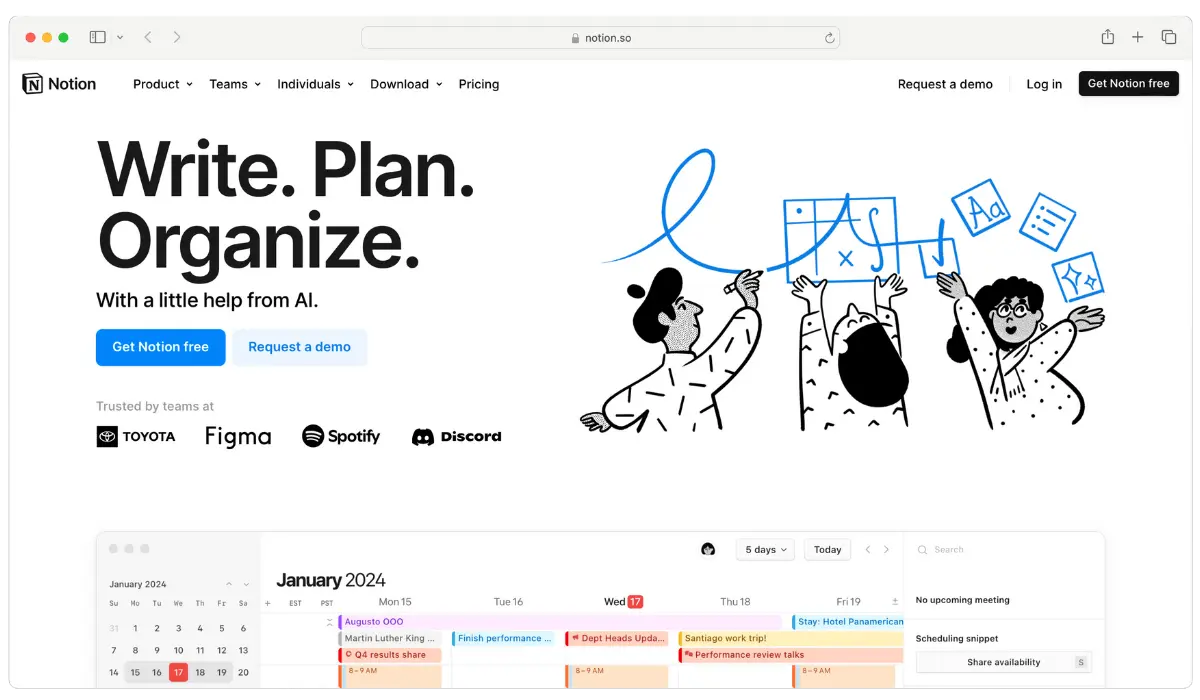
Notion - Best All-in-One Note-Taking App
Another all-in-one productivity app that can turn your iPhone into a powerful tool is Notion. It combines note-taking, task management, and database features all in one place.
You can create custom pages for anything you need, from to-do lists to project plans. The app’s flexible structure allows you to design your workspace to fit your style and needs.
Notion’s templates can give you a head start, from managing a team project to keeping track of personal goals. The free plan gives individuals unlimited pages and blocks and lets you download recent and favorite pages for offline use; Notion AI is only available as a limited trial on free.
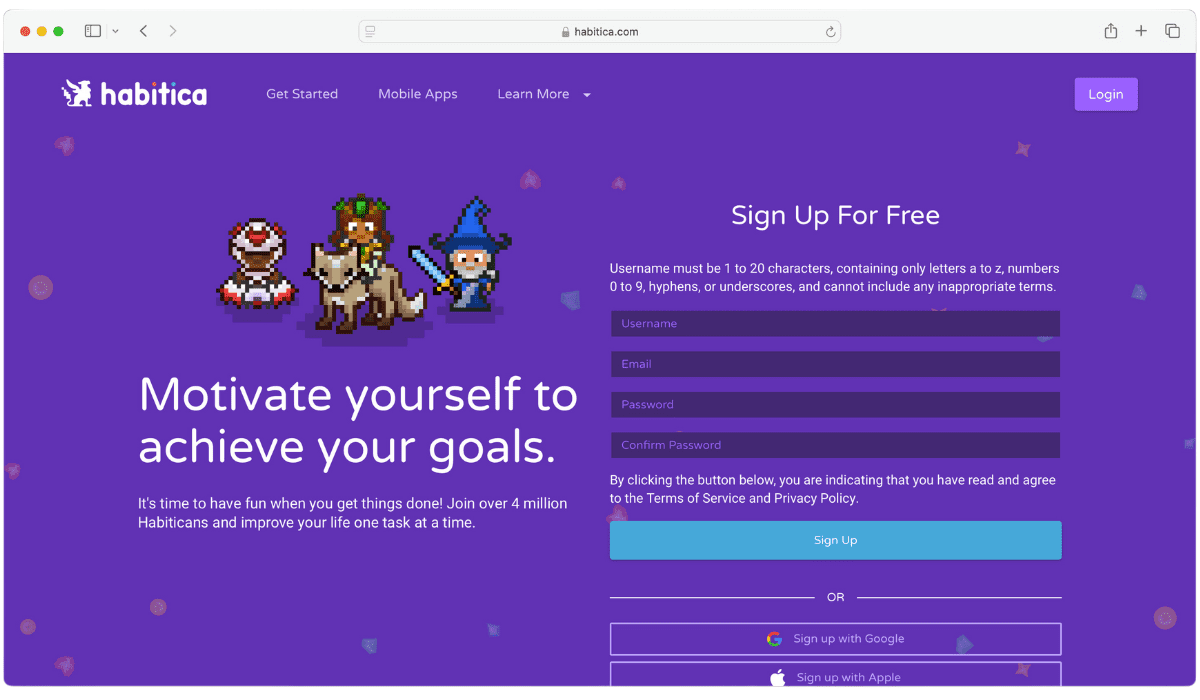
Habitica - Best Gamified App for Boosting Productivity
Finally, we have Habitica, an app that turns your to-do list into a game. You create an avatar, and every habit, daily task or to-do you check off in real life earns you gold, experience and items.
It handles repeating dailies, a flexible habit tracker for things you do several times a day or only now and then, and a classic to-do list for one-off tasks. You can join a party with friends for accountability or take part in challenges with shared task lists. Habitica is free, with optional in-app purchases.
Built-In iPhone Tools to Try Before Downloading Anything
iPhones come with several built-in apps and features that help you stay productive without installing anything extra. Here are the ones worth setting up first.
Focus
Focus lets you choose which people and apps can send you notifications during, say, work hours. You can schedule a Focus to turn on at a set time, at a location, or when you open a particular app, and you can limit your Home Screen to pages with only the apps you need for that Focus.
Shortcuts
Shortcuts chains several steps across your apps into one tap or Siri command. Start with the ready-made shortcuts in the Gallery, then try automations that run on their own.
Notes
Notes is perfect for jotting down quick thoughts, making lists, or even storing larger ideas. You can organize all notes into folders.
Reminders
Reminders lets you set up reminders for tasks, meetings, or anything you don’t want to forget, with times, dates, and locations. Its Groceries list type (iOS 17 and later, with iCloud turned on for Reminders) sorts items into categories like Produce or Frozen Foods automatically.
Calendar
Calendar lets you create events, set reminders, and view your schedule at a glance. It syncs with your other devices.
Safari
Safari lets you save important links and research topics, and you can use extensions to improve your browsing experience.
Files
The Files app lets you manage all your documents in one place. It’s especially helpful if you use cloud services like iCloud or Google Drive, as it brings everything together.
How To Organize iPhone Apps For Productivity
Keep only the apps you use every day on your first Home Screen page, and group the rest into folders like “Work” or “Personal”. Put task managers and calendars side by side, and add widgets for the ones you check most.
Move distracting apps, like social media, to a separate folder or a later page. Then pair this with a Focus that only shows your work page during work hours.
FAQs
Are there free productivity apps for iPhone?
Yes. Every app on this list has a free plan or free tier, but the limits differ a lot. Evernote’s free plan stops at 50 notes and 1 device, while Notion’s free plan gives individuals unlimited pages. See the comparison table above.
Can productivity apps work offline on iPhone?
Many can, partly. Evernote keeps notes available offline, and Notion lets you download recent and favorite pages for offline use.
Are there any privacy concerns with using productivity apps?
Some apps collect usage data or store your content on their servers. Check each app’s privacy policy and its App Privacy section on the App Store before putting sensitive work or personal information into it.
What are common pitfalls when using productivity apps?
Installing too many. Every extra app adds notifications and another place to check. Start with one task app and one notes app, turn off notifications you don’t need, and review after a few weeks whether each app is still earning its spot.